First-time setup
There is nothing difficult to set up. When you don't understand something, hand the AI the guide in your work folder and just ask in plain words, and the AI sets it up for you.
When you don't understand something, hand the AI the guide and let it set things up
Your work folder contains a guide (specification) made just for your site (CLAUDE.md for Claude, AGENTS.md for Codex and others). Once the AI reads it, it can handle uploading, email and your own domain to suit your site. You don't need to edit files yourself or memorize commands. Just ask for what you want in plain words.
Examples of how to ask (you can send them to the AI as they are)
Read this folder's guide and create a company website.
Read this folder's guide and set up the info@ email address so I can receive it on my smartphone.
Read this folder's guide and add a contact form to my website.
The upload isn't working. Read this folder's guide, find the cause and fix it.
Please don't paste passwords or card numbers into a conversation with the AI (you don't need to). More in the FAQ
What you need: a computer running Windows 10 or latera Mac (you can't do this on a smartphone), an AI account (a paid Claude plan, Pro or higher, is recommended), and the activation email. We recommend Google Chrome or Microsoft Edge as your browser.
1Get an AI
The easiest choice is the Claude app. Download the "Windows""macOS" version from https://claude.com/download and log in with your Claude account (Claude Code is the "Code" tab at the top left of the app, available on paid plans, Pro or higher).
If you use ChatGPT you can use Codex, and Cursor, GitHub Copilot, Windsurf and Google's AI also work. Installing Claude in detail · Codex · Google's AI · Cursor · GitHub Copilot · Windsurf
2Download your work folder
On your computer, log in to your dashboard and, under "Work folder (MBSP2_(your domain))", press Download MBSP2_(your domain).zip. Then right-click the zip and choose "Extract All"double-click the zip to create the MBSP2_(your domain) folder on your desktop (folders you created earlier stay named WOOMY_ and keep working).
The screenshots show the Japanese version of the screens.
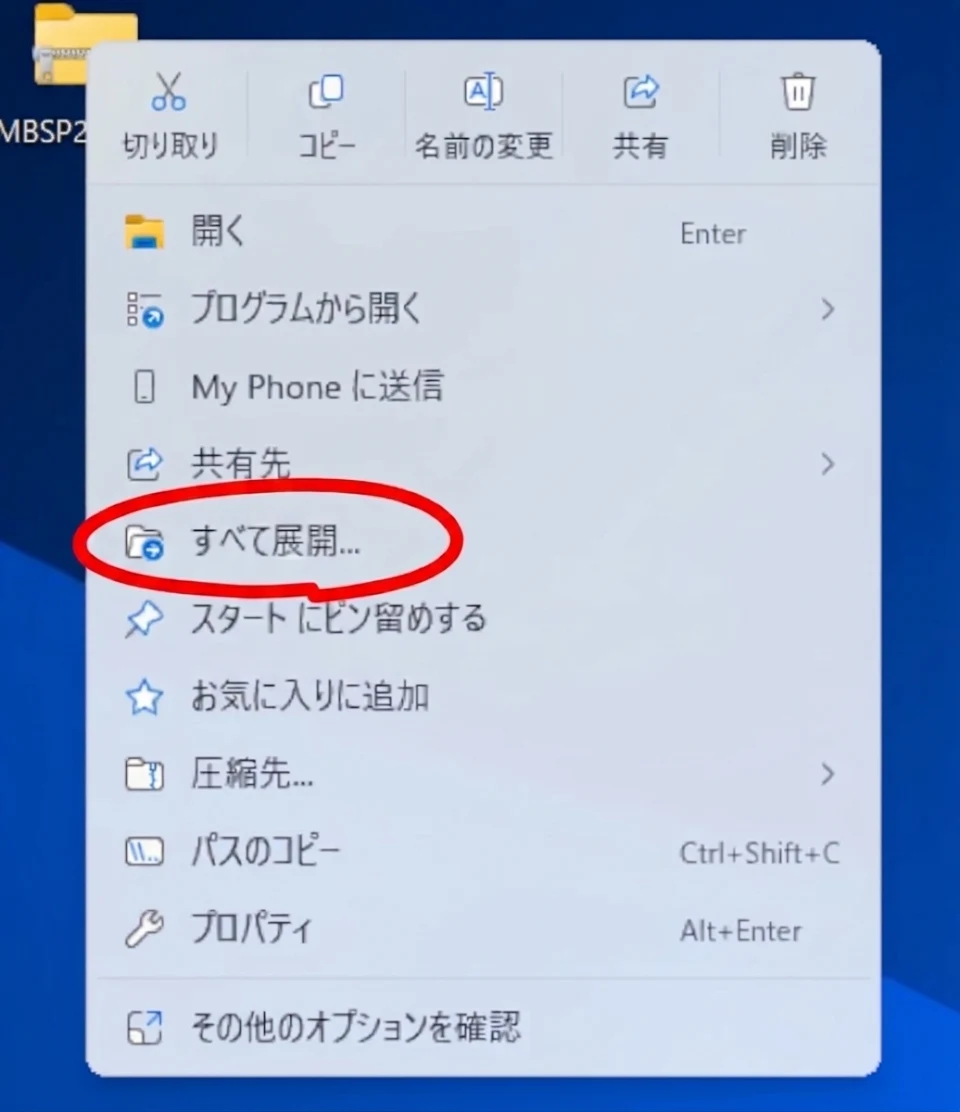
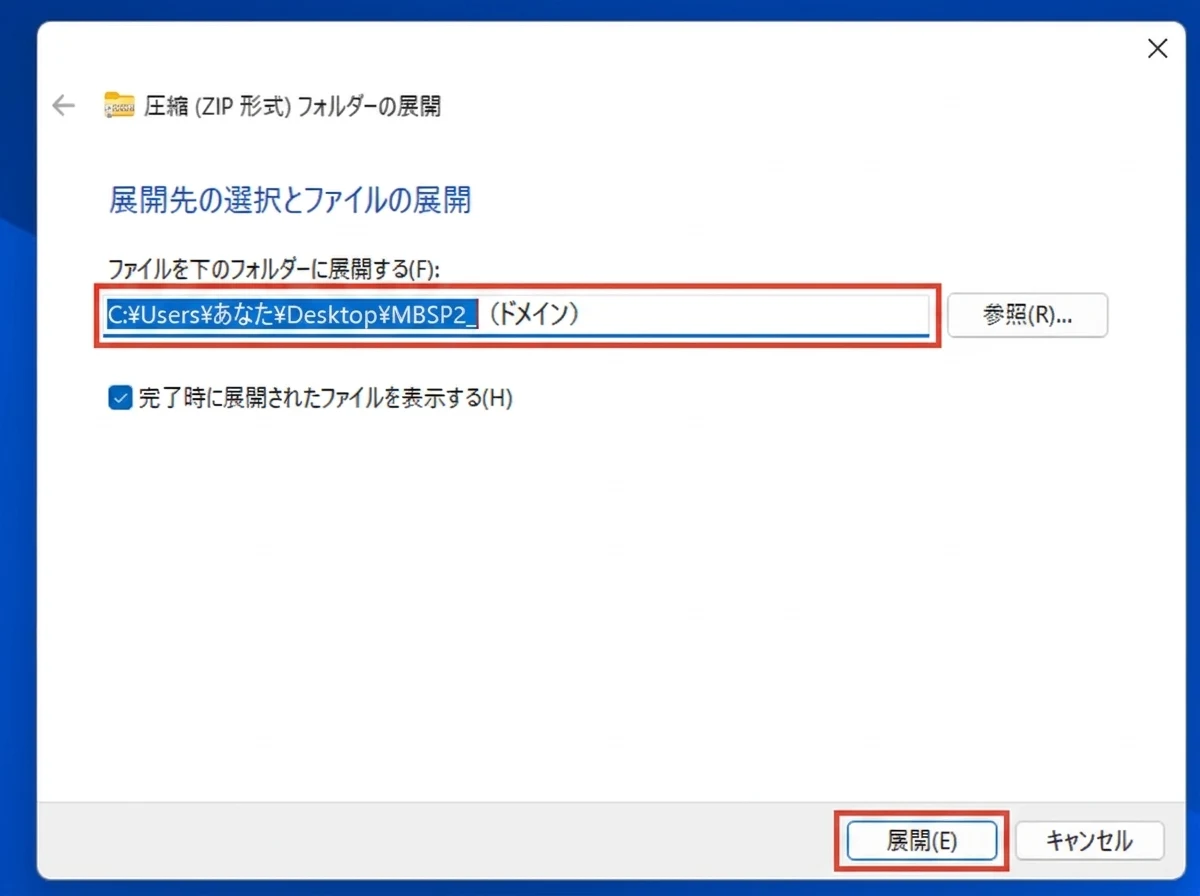
If you can't find where it downloaded, or need help extracting it: downloading · extracting (in the FAQ). Your work folder contains login details that belong only to you. Don't give it to anyone.
3Open the work folder with the AI
In the Claude app, press "Code" at the top left, then "+ New session", and choose the extracted MBSP2_(your domain) folder (the first time only, you register the folder as an "environment"). Detailed steps, screen by screen (in the FAQ)
The screenshots show the Japanese version of the screens.
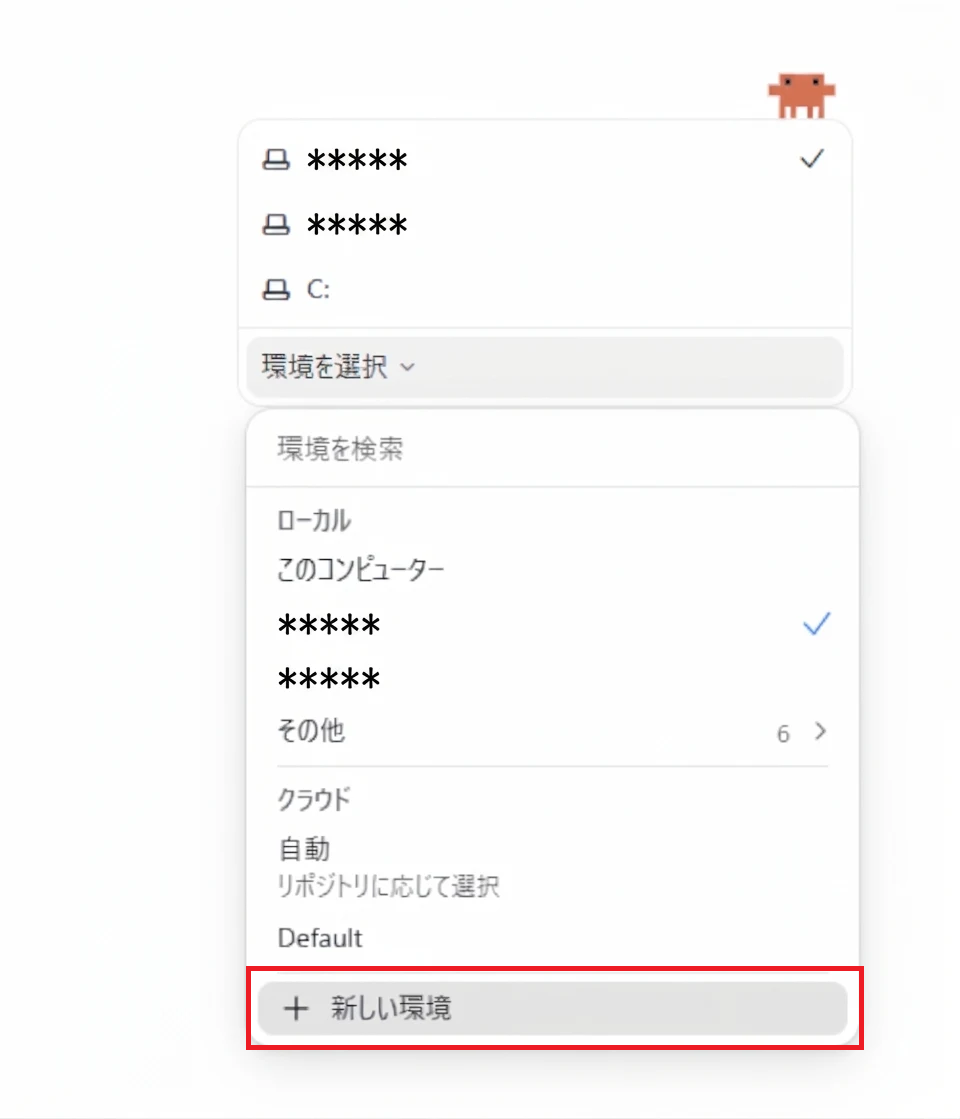
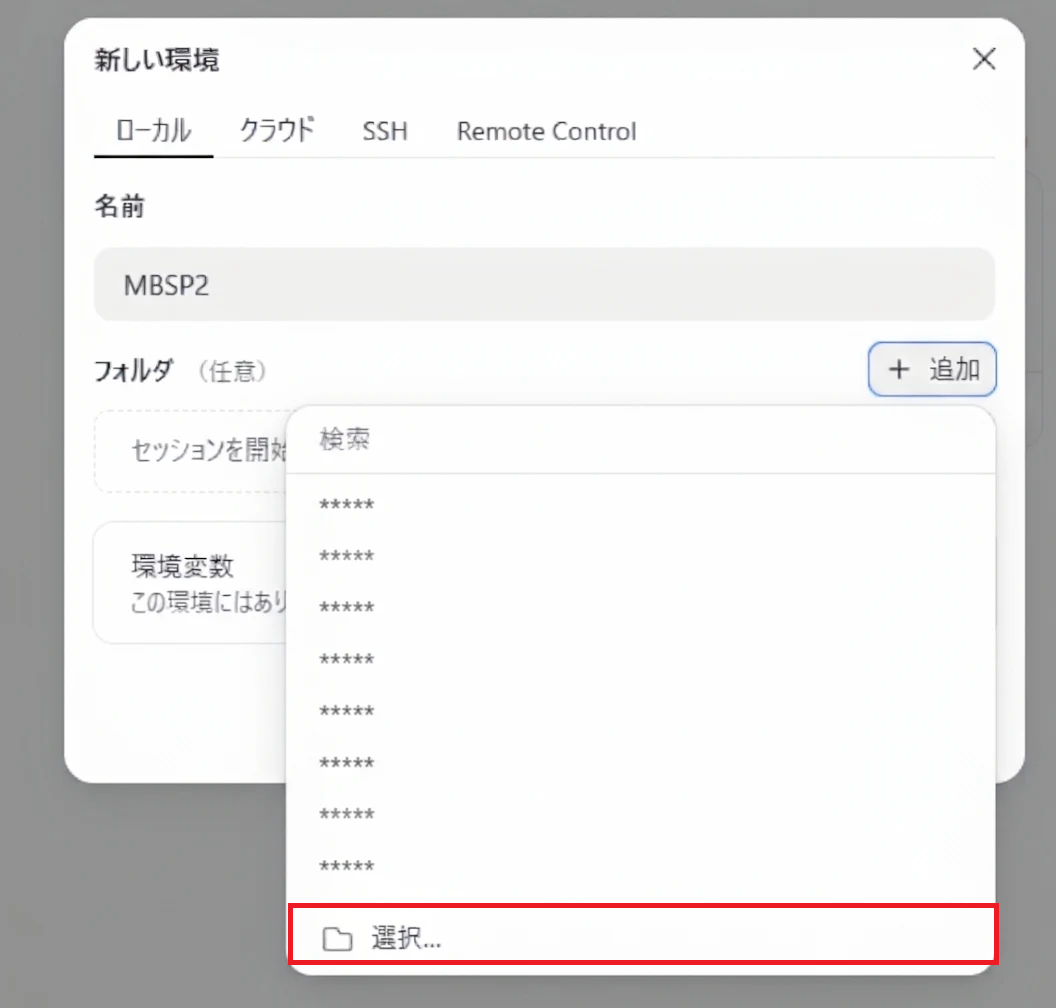
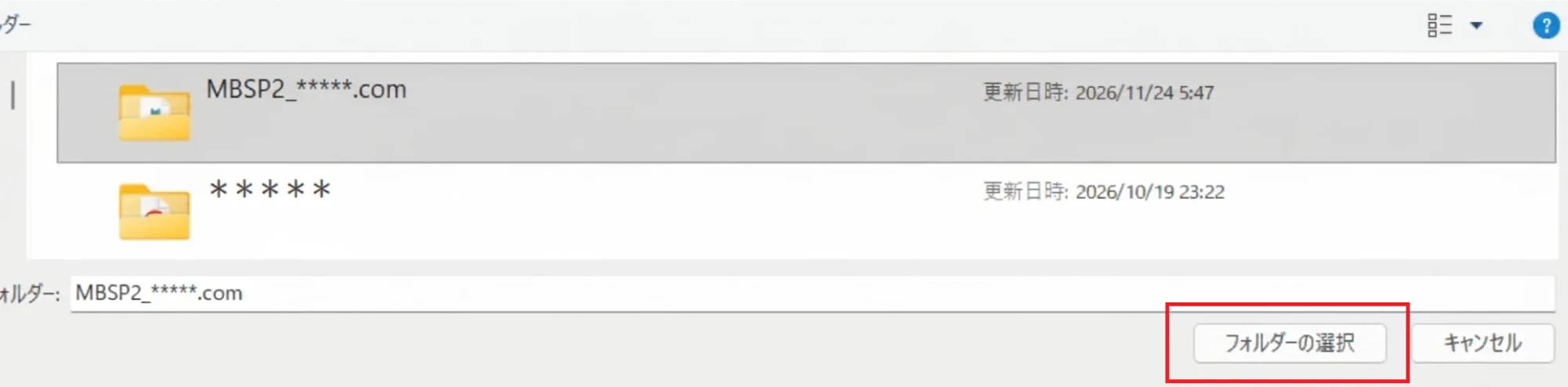
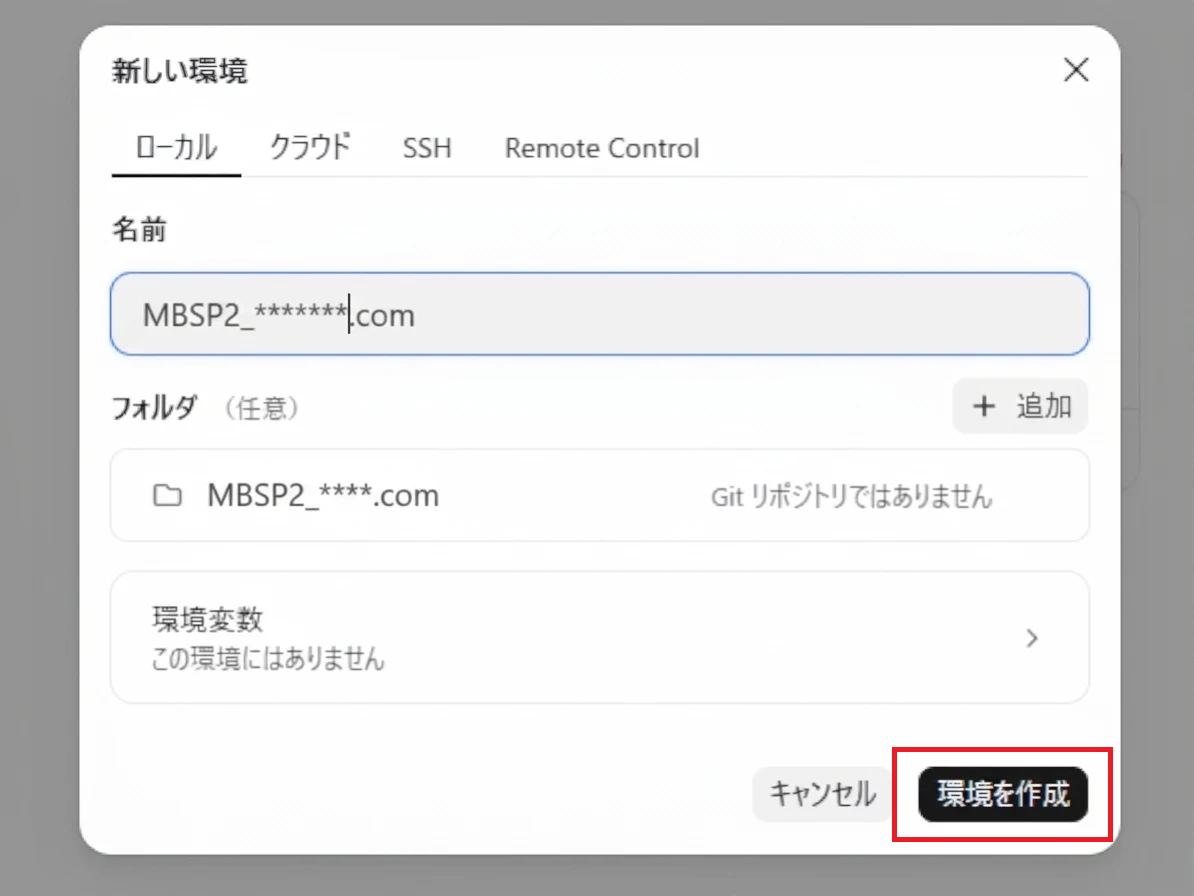
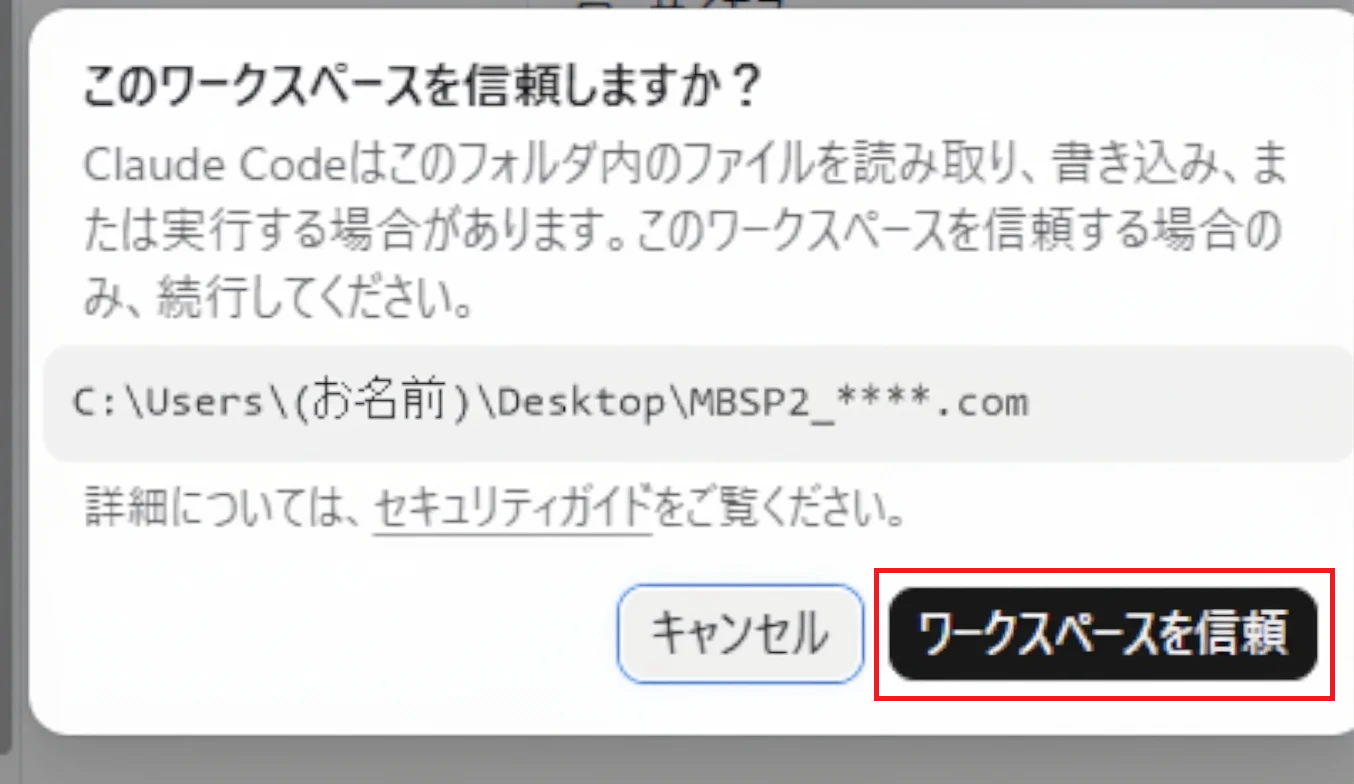
4Hand over the guide and ask
In the input box, tell the AI about the site you want in plain words (a simple greeting is fine too). The AI reads the guide in the folder, asks you questions to suit your site as it goes, and puts the result on your website.
Read this folder's guide. I want to build an online shop.
For any later questions or trouble, ask the AI in the same input box. What happens next · Putting your pages on your website
For detailed steps, see the FAQ
Usually, asking the AI is enough. For when you want to check things yourself, the detailed steps are collected in the FAQ.
- Hand the AI the guide and let it set things up
- Installing the Claude app
- Downloading the work folder, and what if you can't find it
- How to extract the zip
- Opening your work folder in Claude Code
- What happens after your first message
- Putting your pages on your website, and what if it doesn't show
- When you want to edit files yourself (editor)
- Fixing the upload settings (FTP)
- Connecting with FTP software
- Setting up email addresses
- Codex (ChatGPT) setup steps
- Google's AI (Antigravity CLI, Gemini CLI)
- Cursor
- GitHub Copilot (VS Code)
- Windsurf (Devin Desktop)
If you're still not sure, feel free to ask us from the "Questions" page in your dashboard.
If you use ChatGPT, you can build with Codex too
If you subscribe to ChatGPT, you can build and update your website with OpenAI's Codex instead of Claude (there is no extra fee). Codex setup steps (in the FAQ)
You can also use AIs other than Claude and Codex
You can build your site the same way with Google's AI, Cursor, GitHub Copilot or Windsurf, by having them read the guide in your work folder (AGENTS.md). Setup steps for other AIs (in the FAQ)